

The laptop market in 2026 continues its relentless march towards ultra-thin designs. Flagship models from Apple, Dell, Lenovo, HP, and Samsung often boast just a pair of USB-C/Thunderbolt ports and perhaps a headphone jack. While this creates elegant, lightweight machines, it leaves users frustrated when connecting the peripherals we all rely on daily — external displays, keyboards, mice, storage drives, printers, webcams, and Ethernet cables.
Enter the USB-C hub (also called a multi-port adapter or docking station). This compact device plugs into a single USB-C port on your laptop and multiplies it into a dozen or more connections. Far from being a mere accessory, a good USB-C hub has become essential for anyone who wants a productive, organised workspace without the chaos of multiple adapters.
This buyer’s guide will walk you through why hubs matter, the key features to evaluate, the different types available, how to choose the right one, and our top recommendations based on current 2026 performance and reliability. By the end, you will understand exactly how to expand your laptop’s capabilities without sacrificing portability or performance.
What Is a USB-C Hub?
A USB-C hub is a small peripheral that connects to your laptop’s USB-C port (which may also support Thunderbolt or USB4) and provides additional ports for video output, data transfer, power delivery, networking, and legacy devices. Unlike older USB-A hubs, modern USB-C versions leverage the reversible, high-bandwidth USB-C connector that can carry power, data, and video signals simultaneously.
Most hubs are either compact “dongle-style” adapters that slip into a laptop bag or larger desktop docking stations that sit on your desk and support multiple monitors. The technology has matured significantly: today’s hubs support up to 40 Gbps data transfer (via USB4 or Thunderbolt 4/5), 8K video output, and 140 W Power Delivery charging.
In essence, a USB-C hub acts as a bridge between your slim modern laptop and the wide ecosystem of peripherals that still use HDMI, USB-A, Ethernet, SD cards, and DisplayPort. Without one, you are limited to whatever the manufacturer decided to include — often far too little for real-world use.

Why a USB-C Hub Is Essential for Modern Laptop Setups
Consider a typical day. You arrive at your desk with a MacBook Air or Dell XPS that has two USB-C ports. You need to connect a 4K monitor for spreadsheets, an external SSD for video editing, a wired keyboard and mouse, a printer, and perhaps charge your phone. Without a hub you would need to swap cables constantly or buy separate dongles that clutter your bag and desk.
Remote workers and hybrid professionals report that a single hub can increase productivity by 30–40 % simply by eliminating downtime spent plugging and unplugging devices. Creative users benefit from stable 4K or 8K external displays and fast 10 Gbps+ data transfers for large media files. Business users appreciate Gigabit Ethernet for rock-solid video calls and secure wired connections. Students can quickly transfer lecture recordings via SD cards while charging their laptop.
Beyond convenience, a USB-C hub future-proofs your investment. As laptops drop legacy ports entirely, the hub keeps your existing peripherals relevant for years. It also reduces wear on your laptop’s precious USB-C ports by centralising connections. In short, if your laptop has USB-C ports, a hub is no longer optional — it is the missing piece that turns a portable computer into a powerful desktop replacement.
Key Features to Look For When Buying a USB-C Hub
Choosing the right hub requires understanding several technical specifications. Here is what matters most in 2026:
Power Delivery (PD) Charging Look for at least 100 W PD pass-through (140 W is ideal for high-power laptops). This allows you to charge your laptop at full speed while using all other ports. Cheaper hubs offering only 65 W may struggle with gaming laptops or MacBook Pros under load. Always check the hub’s PD rating matches or exceeds your laptop’s charger.

Video Output Most hubs support at least one 4K@60Hz HDMI or Display Port. Premium models offer dual or triple 4K displays or even a single 8K output. Thunderbolt 4/5 hubs excel here, enabling daisy-chaining and higher resolutions without compressing the signal. Confirm your laptop supports Display Port Alt Mode or Thunderbolt for full functionality.
Data Transfer Speeds USB 3.2 Gen 2 ports deliver 10 Gbps — sufficient for most users. Look for USB4 or Thunderbolt ports offering 40 Gbps for external SSDs and NVMe enclosures. Card readers should support UHS-II SD cards for fast photo and video transfer.
Ethernet and Networking Gigabit Ethernet (1 Gbps) is standard on good hubs; some now offer 2.5 Gbps. Wired networking remains more reliable than Wi-Fi for large file uploads or stable video conferencing.
Build Quality and Design Aluminium or high-grade plastic construction with braided cables lasts longer. Compact hubs should weigh under 100 g for travel; desktop docks need sturdy bases and good ventilation to prevent overheating during heavy use.
Compatibility Most hubs work with Windows, macOS, ChromeOS, and Linux. Thunderbolt-specific hubs may require your laptop to have a Thunderbolt port for full features. Always verify driver requirements.
Other Useful Ports SD/microSD readers, 3.5 mm audio jacks, and extra USB-C ports for daisy-chaining are bonuses worth considering.
By prioritising these features you avoid buying a hub that becomes obsolete within months.
Types of USB-C Hubs: Portable vs Desktop Docking Stations
Portable Hubs (Dongles) These slim devices measure roughly 10–15 cm and weigh less than 150 g. They are perfect for travel or minimal desk setups. Examples offer 6–8 ports and focus on essential connections (HDMI, 2–3 USB-A, PD, SD card). They are ideal for students, digital nomads, and anyone who values bag space.
Desktop Docking Stations Larger units sit permanently on your desk and can support dual or triple monitors, multiple USB ports, Ethernet, and even audio inputs. They often include dedicated power adapters and advanced features like 10 Gbps USB ports or Thunderbolt networking. Choose these if you have a fixed home office or need maximum expansion.
Hybrid/Thunderbolt Models These combine portability with power — compact yet capable of driving multiple high-resolution displays and fast storage. They represent the sweet spot for many professionals in 2026.
How to Choose the Right USB-C Hub for Your Needs
Start with your laptop model. MacBook users should consider Thunderbolt 4 hubs for best performance. Windows users have more flexibility with USB4 or standard USB-C hubs.
Next, list your daily peripherals and required resolutions. If you need dual 4K monitors plus fast storage, budget for a Thunderbolt dock (£150–£300). For basic needs (one monitor, keyboard, mouse, charging), a £30–£60 portable hub suffices.
Consider your budget range:
- Entry level (£25–£60): basic connectivity for occasional use.
- Mid-range (£60–£150): reliable daily driver with good speeds and build quality.
- Premium (£150+): full desktop replacement with multiple displays and future-proof specs.
Finally, read recent user reviews for real-world compatibility issues and check warranty (at least 18 months is preferable). Test compatibility with your specific laptop if possible before committing.
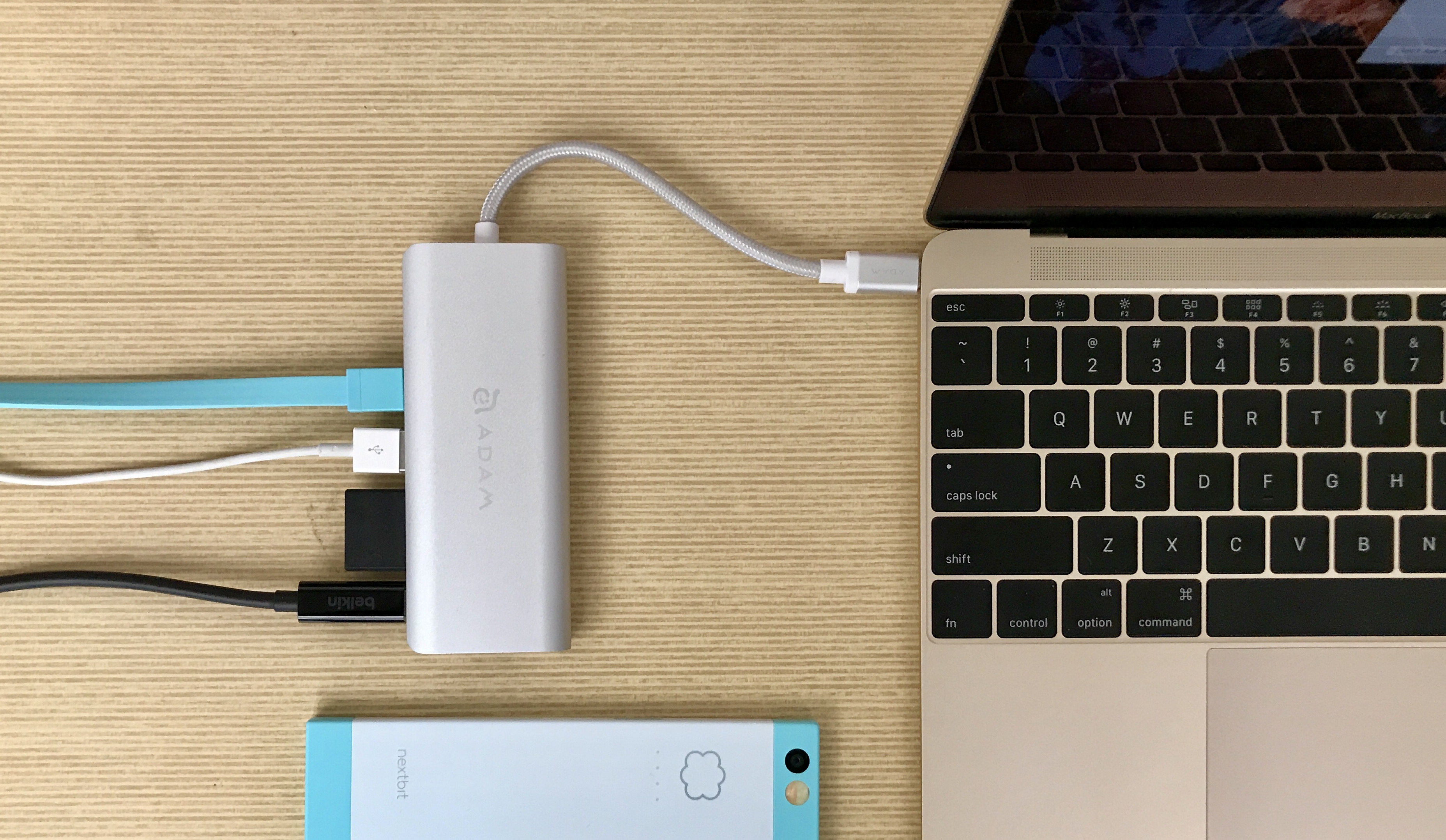
Based on performance, reliability, and value in current reviews, here are standout choices across categories:
Best Overall Portable Hub UGREEN Revodok series (7-in-1 or 8-in-1 models) — excellent 100 W PD, 4K HDMI, fast USB ports, and SD reader at a reasonable price. Compact aluminium design travels well and works flawlessly with both Mac and Windows laptops.
Best Premium Thunderbolt Dock HyperDrive or similar Thunderbolt 4/5 models — support dual 4K (or higher) displays, 40 Gbps data, and robust build. Ideal for creative professionals needing maximum bandwidth and display options.
Best Value Desktop-Style Dock Anker or Plugable multi-monitor docks — often include dual HDMI, Ethernet, and multiple USB ports with strong Power Delivery. Great for fixed workspaces on a budget.
Best for Travel Slim 6-in-1 or 7-in-1 adapters from reputable brands like those featured in 2026 round-ups — lightweight, with essential ports and reliable PD charging.
When comparing, focus on real-world testing rather than specifications alone. Premium models justify their cost through better heat management, longer warranties, and consistent performance under load.
Common Pitfalls and Expert Tips
Avoid ultra-cheap no-name hubs — they often overheat, drop connections, or fail to deliver advertised power and speeds. Always match the hub’s PD rating to your laptop’s requirements.
Tip: Keep your laptop’s original charger handy; some hubs share power between devices, which can reduce charging speed if overloaded. For video editing or gaming, choose Thunderbolt hubs to minimise latency.
Update your laptop’s firmware and any hub-specific drivers regularly for optimal compatibility. If you use multiple monitors, test the hub with your exact model before heavy investment. Finally, organise cables neatly with clips or sleeves — a hub only reduces clutter if you manage the wires it creates.
Conclusion
A USB-C hub is no longer a luxury; it is an essential tool that unlocks the full potential of your modern laptop. By expanding connectivity, supporting high-resolution displays, enabling fast data transfer, and keeping everything charged, the right hub turns your portable device into a versatile powerhouse.
Whether you opt for a compact travel adapter or a full desktop dock, investing in a quality USB-C hub will pay dividends in productivity and convenience for years to come. Evaluate your needs, match the specifications carefully, and choose a reputable brand — your future self (and your tidy desk) will thank you.
0 comments